How do you use your own photo as a live wallpaper background?
Turn on Enable Custom Background and pick a photo. It replaces the sky gradient while every animation carries on over the top — particles, weather, sun, moon and stars. You can position, zoom and dim the photo, and switch the landscape, clouds and celestial layers on or off.
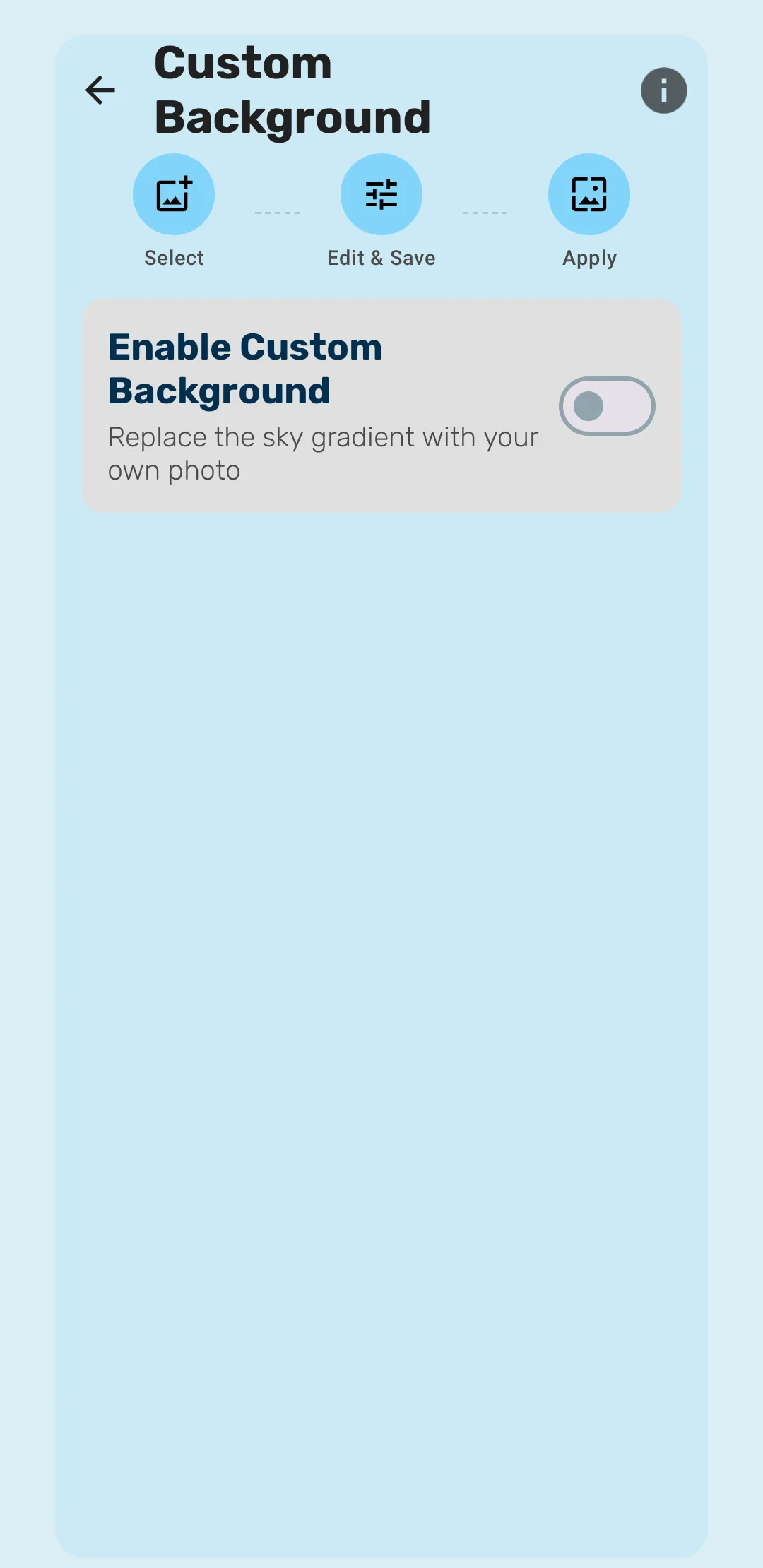
What a custom background actually replaces
The setting is Enable Custom Background — “Replace the sky gradient with your own photo”. That wording matters: your photo takes the place of the sky, not the whole wallpaper. Everything else Seasons draws is a separate layer that keeps animating on top.
So a photo of your garden can still have snow falling on it in winter, clouds drifting across it, and the real moon rising over it.
The three steps
The app walks it in three stages:
- Select — choose a photo from your device.
- Edit & Save — position, zoom, set the display mode and dim it to taste.
- Apply — commit it as the background.
You can return and edit the photo later without starting over.
Choosing which layers stay
Once a photo is in place, four controls decide what appears over it:
| Setting | What it does |
|---|---|
| Opacity | Dims the photo, so animations in front of it read more clearly |
| Show Clouds | Display animated clouds over the photo |
| Show Landscape | Display the seasonal landscape scene |
| Show Sun, Moon & Stars | Display celestial objects over the photo |
Show Landscape is the interesting one. Leave it on and the seasonal artwork sits in front of your photo, so the photo acts as a sky behind the scene. Turn it off and the photo becomes the whole backdrop, with only particles, weather and sky objects over it. Both look deliberate; which you want depends on whether the photo is a landscape in its own right.
Getting a photo to read well behind animations
A wallpaper has to survive having icons, widgets and a clock on top of it, and now animated particles too. A few things that help:
- Use Opacity. Dimming the photo a little makes falling snow and rain far easier to see, and keeps home-screen icons legible.
- Busy photos fight the animations. A photo with a lot of fine detail competes with the particles. Skies, horizons and simple scenes work best.
- Consider turning Show Landscape off if your photo already contains a landscape, or you end up with two horizons.
The battery trade-off
The app is upfront about this: using a custom background may increase battery usage slightly, because the wallpaper has to render your photo alongside the animated effects.
It is a small cost rather than a dramatic one, and Battery Saver is still available if you want to claw it back.
Where the photo is stored
The photo is cached by the app so it does not have to be re-read constantly. The settings screen shows the current cache size and offers a Clear cache action, which is handy if you have tried several photos and want the space back.
Frequently asked questions
- Does my photo replace the whole scene?
- It replaces the sky gradient. The seasonal landscape, clouds and celestial objects are separate layers you can each turn on or off, so you can go from photo-with-snow to photo-with-everything.
- Will a custom photo use more battery?
- Slightly. The app says so directly — the wallpaper has to render your photo along with the animated effects. Battery Saver still applies if you want to offset it.
- Do weather effects still work over my photo?
- Yes. Rain, snow, fog and the rest animate over the photo exactly as they do over a built-in scene.
- Can I reposition the photo after choosing it?
- Yes. The editor lets you adjust position, zoom, display mode and dimming, and you can go back and edit it again at any time.
Last updated