Do live wallpapers drain battery, and what does Battery Saver do?
Seasons renders at 50 frames per second using Android's Canvas rather than a game engine. Battery Saver drops that to 30 frames per second and limits some animations and effects, which is the main lever you have if battery matters more than smoothness.
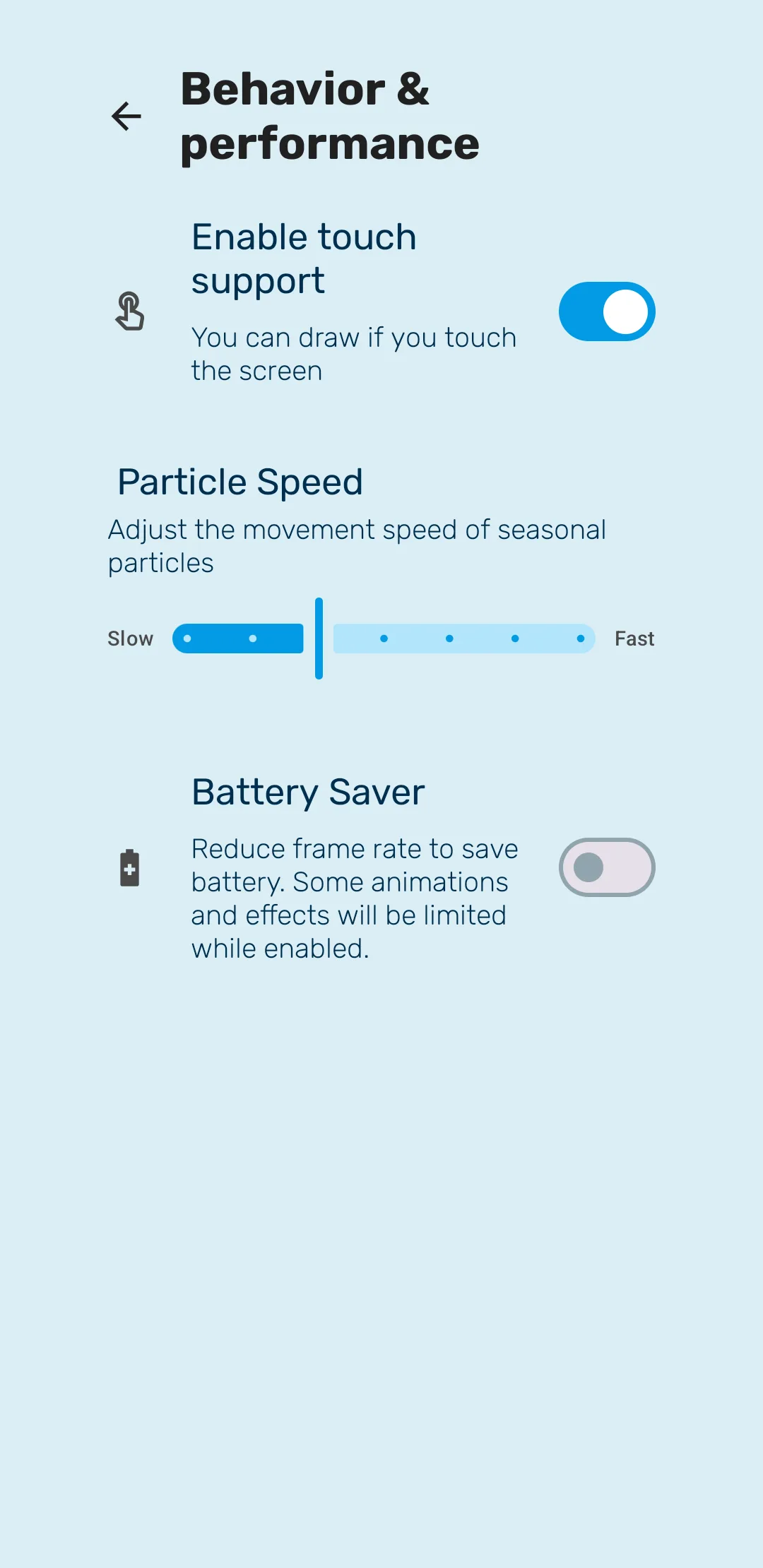
The honest answer on battery
Any live wallpaper costs more than a static image, because something has to be drawn. The useful question is how much, and what you get for it.
Seasons draws at 50 frames per second using Android’s Canvas API rather than a full game engine, which keeps the cost lower than a 3D wallpaper doing the same job. It also only draws while it is actually visible — when you open an app, or the screen turns off, the wallpaper stops.
In practice that means the cost tracks how often you look at your home screen, not how many hours the phone is on.
Battery Saver
| Setting | What the app says |
|---|---|
| Battery Saver | Reduce frame rate to save battery. Some animations and effects will be limited while enabled. |
Concretely, Battery Saver takes the frame rate from 50 FPS down to 30 FPS and limits some of the heavier effects. Thirty frames per second is still smooth for drifting particles — you are most likely to notice it on fast motion.
Nothing is removed from the wallpaper. Weather, seasons, the day-night sky and the moon all keep working.
Particle speed
| Setting | What the app says |
|---|---|
| Particle Speed | Adjust the movement speed of seasonal particles |
A slider from Slow to Fast, controlling how quickly snow, petals, bubbles and leaves move.
This is a taste setting rather than a battery one — the same number of particles is drawn either way. Slow reads as calm and is easier to look at behind icons; fast reads as a blizzard.
Touch support
| Setting | What the app says |
|---|---|
| Enable touch support | You can draw if you touch the screen |
With it on, dragging a finger across the home screen scatters the seasonal particles into trails — hearts, stars and spirals. It is the app’s small delight, and it costs nothing while you are not touching the screen.
Turn it off if you find it triggers while you are swiping between home screens.
Getting the lowest possible cost
If battery is the priority, in rough order of effect:
- Turn on Battery Saver — the frame rate is the single biggest lever.
- Leave the custom photo background off, or dim it, since rendering a photo alongside the animations adds a little work.
- Set weather to Manual — the app then has no reason to fetch fresh weather data or use location. See Weather.
- Choose a simpler scene style. Minimal and Low Poly have far less going on than the illustrated styles.
None of these turn the wallpaper into a static image, which is rather the point of installing it.
Frequently asked questions
- How much battery does a live wallpaper use?
- It depends on how often you look at your home screen, because a live wallpaper only draws while it is visible. It is paused whenever you are inside another app or the screen is off.
- What exactly does Battery Saver change?
- It reduces the frame rate from 50 to 30 frames per second and limits some animations and effects. Motion becomes slightly less fluid; nothing disappears.
- Does a custom photo cost more battery?
- Slightly, because the wallpaper renders your photo alongside the animated effects. The app says so directly.
- Can I turn off the touch drawing?
- Yes. "Enable touch support" controls it, and turning it off stops the wallpaper responding to touch at all.
Last updated